How to Make a Collage on Instagram: Every Method That Still Works
Instagram has no collage button for feed posts, so "how do I make a collage on Instagram" has four honest answers: a carousel, the Story Layout grid, a collage maker app, or a planned grid. Here is each one, step by step.
Here is the awkward truth behind this question: Instagram does not have a collage button for feed posts. The Layout companion app that used to do the job was retired in 2024, so when people ask how to make a collage on Instagram — or how to create one, or how do you make a collage for Instagram, the phrasing varies but the intent does not — they are really choosing between four different features. Each produces a different result, and picking the right one first saves you twenty minutes of menu-hunting.
First, decide what you actually mean by "collage"
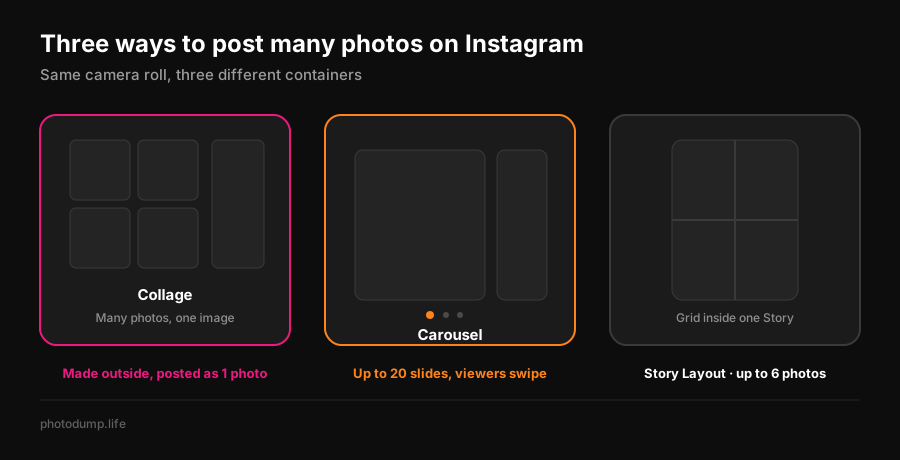
- **Several photos in one post that people swipe through** — that is a carousel, and it is what most people asking this question actually want.
- **Several photos merged into a single image** — a true collage. You build it in a free app and post the finished image.
- **Several photos in one Story** — Instagram has this built in, via Layout mode or the photo sticker.
- **Several posts forming one big picture on your profile** — a grid collage, made by splitting one image into tiles.
Method 1: the carousel — the collage Instagram actually wants you to make
A carousel puts up to 20 photos and videos in one swipeable post. It is the platform's native answer to "I have more than one photo", and the algorithm treats it well: in Socialinsider's benchmark data, carousels are the top-performing format at roughly 0.55% average engagement — ahead of Reels at about 0.52% — while single images keep declining year over year. Every swipe counts as an interaction, and carousels collect the most saves of any format.
- 1Tap **+** and choose **Post**.
- 2Tap the **multiple-photo icon** (stacked squares) above your camera roll.
- 3Select up to 20 photos and videos, in the order you want them to appear.
- 4Adjust crops, write a caption, and share.
The first slide becomes the cover and the order locks once published, so arrange before you post. For the full walkthrough — including reordering, mixed photo-and-video posts, and why some accounts still see a limit of 10 — see how to add multiple pictures to an Instagram post.
A carousel of loosely related, mostly unedited photos has a name: a photo dump. When Instagram raised the carousel limit from 10 to 20 slides, it pitched the change as more room for photo dumps. If that is the energy you are going for, start with what a photo dump on Instagram looks like.
Method 2: the built-in Story collage
Stories are the one place Instagram kept a real collage tool. **Layout mode** in the Story camera arranges two to six photos in a fixed grid, and the **photo sticker** lets you stack as many photos as you like, freeform, resized and rotated with your fingers. Both are free, native, and take under a minute.
The full steps, plus the sticker trick most guides miss, are in how to make a collage on an Instagram Story.
Method 3: a collage maker app for a single merged image
When the result needs to be one image — a before-and-after, a moodboard, a recap you will also print or share elsewhere — build it outside Instagram and post the finished picture. The good options are free:
| App | Best for | Worth knowing |
|---|---|---|
| Canva | Templates sized for Instagram posts and Stories | Works in the browser too — this is the "collage online" answer |
| PicCollage | Fast freestyle collages on a phone | Stickers, backgrounds, AI cutouts; watermark on some free layouts |
| Google Photos | A clean grid in three taps | Already on most phones; pick photos, tap plus, choose Collage |
| Adobe Express | Polished templates, browser or app | Free tier is generous; exports exactly at Instagram sizes |
| CapCut | Video collages and animated recaps | Templates accept photos and clips; exports vertical for Stories and Reels |
Export at **1080 × 1350 px (4:5 portrait)** for a feed post — it takes up the most screen and survives Instagram's newer rectangular profile grid — or 1080 × 1920 for a Story. Then post it like any other photo.
Method 4: the grid collage on your profile
The last thing people mean by "Instagram collage" is three, six, or nine posts that join into one large image on the profile. Splitting apps cut a single picture into tiles you post in reverse order. It photographs well on launch day and badly forever after: post anything new and the artwork shifts out of alignment. Treat it as a stunt for a big announcement, not a layout strategy.
Where the old collage apps went
If you remember making collages in **Layout from Instagram**, you are not imagining it — Instagram launched Layout in 2015 and quietly retired it in 2024, folding grid collages into the Story camera. The full story, and what replaces it, is in what happened to Layout from Instagram.
The real bottleneck is choosing the photos
Whichever container you pick, the slow part is the same: staring at 200 nearly identical shots deciding which five deserve the collage. That is the part our PhotoDump app handles — it sorts your camera roll on your phone, on-device, so you swipe through a day's photos in minutes and walk away with the keepers. Collage tools are quick once you know what goes in them.
Need words to go with the result? There is a full library of photo dump captions that work just as well under a collage.
For a feed post, either select up to 20 photos as a carousel (tap +, then the stacked-squares icon) or build a single merged image in a free app like Canva or Google Photos and post it. For a Story, use Layout mode or the photo sticker — both are built in.
Only in Stories, where Layout mode arranges up to six photos in a grid and the photo sticker places any number freeform. Feed posts have no collage tool — you either post a carousel or make the collage in another app first.
Canva has the most Instagram-sized templates and works in a browser; PicCollage is the fastest freestyle option on a phone; Google Photos makes a clean grid in three taps. All three are free to use.
No. Instagram retired the standalone Layout app in 2024 and later removed it from the app stores. Grid collages now live inside the Story camera, and listings with similar names in app stores today are third-party apps.
1080 × 1350 pixels (4:5 portrait) for a feed post, 1080 × 1920 (9:16) for a Story. Portrait fills more of the screen than square and displays cleanly on the current profile grid.
Usually. A 20-photo carousel gets swipes, saves, and completion signals that a single merged image cannot, and benchmark data consistently ranks carousels as the top-performing feed format. Use a true collage when the point is one composed image.