How to Make a Photo Dump: Step-by-Step for Instagram, TikTok, and Facebook
The whole process in three steps — gather, cut, sequence — plus the exact posting flow on each platform and the mistakes that make a dump fall flat.
Making a photo dump takes about four minutes once you know the shape of it. Most of that time is the cut, which is the step everyone skips and the one that decides whether anyone swipes past slide two.
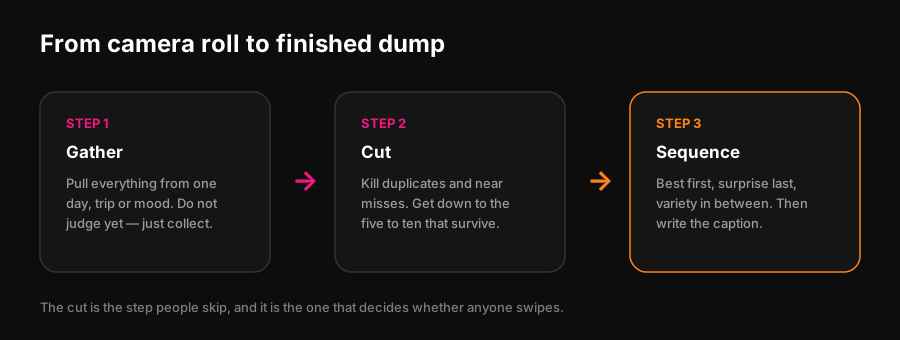
Step 1 — Gather
Pick one container: a day, a weekend, a trip, a month, or a mood. Open your camera roll and select everything from that window without judging any of it. You are collecting, not choosing.
Resist the urge to filter here. Deciding while you scroll is what turns four minutes into forty.
Step 2 — Cut
Now be ruthless. Delete from the selection:
- Near-duplicates. If you took six of the same thing, keep the best one.
- Anything blurry *by accident* rather than blurry in a way that looks good.
- Screenshots you did not mean to include.
- Photos that only make sense to you and need a paragraph of explanation.
Aim to land between five and ten. That range is where completion rates hold up — the reasoning is in how many photos a photo dump should have.
If you cannot decide between two similar frames, cut both. The dump will not miss them and you will stop stalling.
Step 3 — Sequence
Order matters more than people expect, because the first slide is the only one guaranteed to be seen.
- 1**Best photo first.** This is your cover and your thumbnail.
- 2**Vary what comes next.** Face, then detail, then wide, then food. Never two similar frames back to back.
- 3**Keep one deliberate imperfection** somewhere in the middle.
- 4**Save something good for last.** The final slide is what earns a save or a screenshot.
Posting it on each platform
| Platform | Where | Limit | Notes |
|---|---|---|---|
| New post, then the multi-select icon | 20 photos | Cover image is slide one. Reorder before posting — you cannot afterwards. | |
| TikTok | Upload, then photo mode | 35 photos | Add a sound. Swipe-through rate drives reach here. |
| New post, then photo/video, or an album | No practical cap | Albums suit large sets; a normal post suits a dump. |
More detail per platform in Instagram, TikTok and Facebook.
Step 4 — The caption
Keep it short and unbothered. One to three words naming the period does the job: "lately", "august", "weekend recap". If you write something longer, make it a genuine thought rather than a caption pretending to be casual.
If nothing comes to mind, there are 75+ ready-made options sorted by tone in photo dump captions, with occasion-specific lists for birthdays, trips and summer.
A worked example
Saturday produced 214 photos. Here is the actual cut:
- 1**Gather:** everything from 10am to midnight — 214 frames, most of them bursts and duplicates.
- 2**Cut, round one:** collapse every burst to its best frame. 214 becomes 61.
- 3**Cut, round two:** drop everything that needs explaining, every near-duplicate, every photo that is only sky. 61 becomes 14.
- 4**Cut, round three:** the hard one. Fourteen good photos, eight slots. The tiebreaker is variety — the second bakery photo loses to the only train photo, however good the croissant looked.
- 5**Sequence:** best group shot first, the receipt joke last, the blurry bar photo at position five where it reads as texture.
Total time with practice: about six minutes. The first two rounds are mechanical, which is exactly why they are worth automating.
Doing the cut automatically
The gather-and-cut steps are mechanical, which is why they are worth automating. PhotoDump groups your camera roll by time and place, drops duplicates and near-misses, and hands back a sequence in the right order. It runs entirely on your device — nothing is uploaded — and you can reorder anything before you post.
By hand or assisted
| By hand | With PhotoDump | |
|---|---|---|
| Gather | Scroll and multi-select | Automatic, by time and place |
| Cut duplicates | Eyeball each burst | Automatic on device |
| Sequence | Drag until it feels right | Draft order with a strong opener |
| Caption | Stare at the keyboard | Generated on device, editable |
| Time | 15–40 minutes | Two or three |
Either route ends with you approving every frame. The assisted route just skips the scrolling — nothing leaves your phone either way.
Mistakes that flatten a dump
- Twenty photos when eight would have held attention.
- The best shot buried at slide seven.
- The same filter on everything, which reintroduces the polish the format exists to avoid.
- Six unrelated occasions in one post, so there is no thread to follow.
Common questions
Tap new post, select the multi-image icon, choose five to ten photos, drag them into order with your strongest first, add a short caption and post.
Strongest first, varied through the middle, and something worth saving last. Avoid placing two visually similar photos next to each other.
Light and inconsistent editing is fine. Applying one heavy filter to every image makes it look like a campaign rather than a dump.
A few minutes. If you are spending half an hour, you are curating, and curating is the thing the format is reacting against.
Select the photos in the Photos app or let PhotoDump group them on device, then post via Instagram's multi-select. Nothing needs a computer or an upload to a third service.
On Instagram you can remove a slide or edit the caption, but you cannot reorder or add photos after publishing — get the order right before you share.